What you will see
When the Codex Pass home page shows the message below, the ChatGPT account this connection uses has been signed out and needs to sign in again. Until it does, Codex requests through this connection will fail.
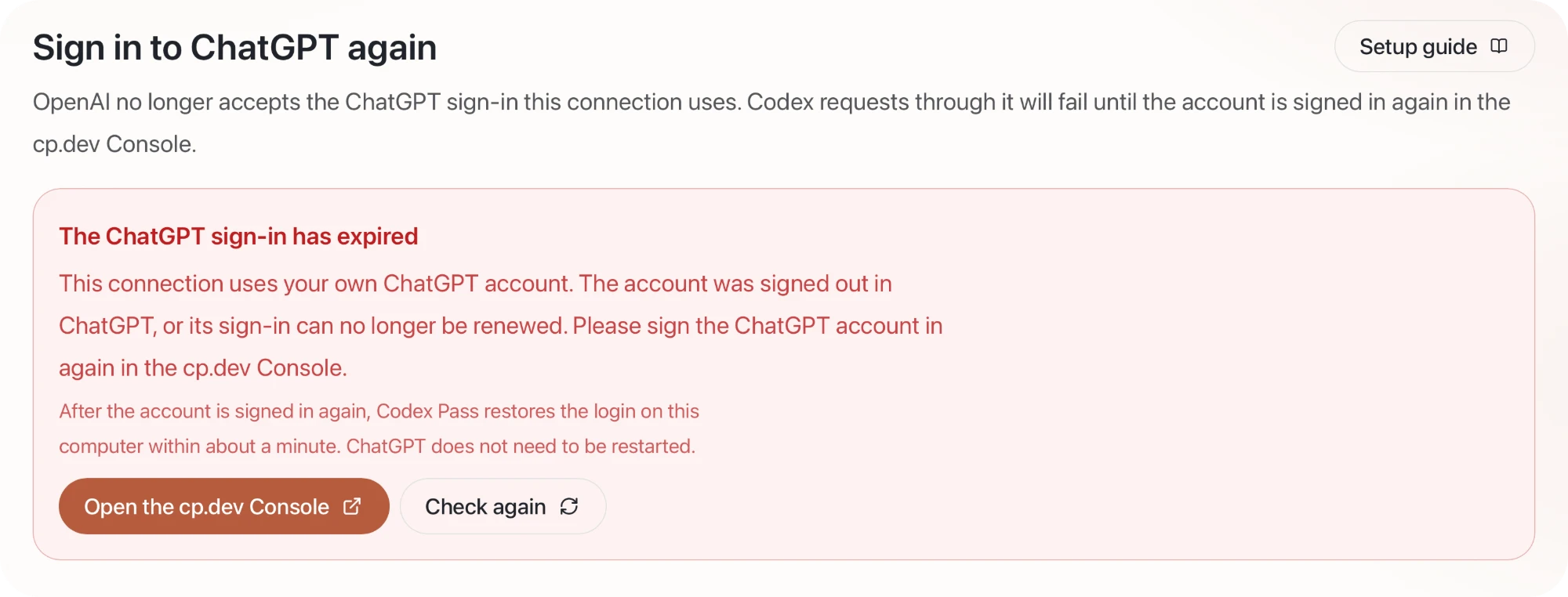
If you sign in to the cp.dev Console at this point, the App connections page usually shows the same message.
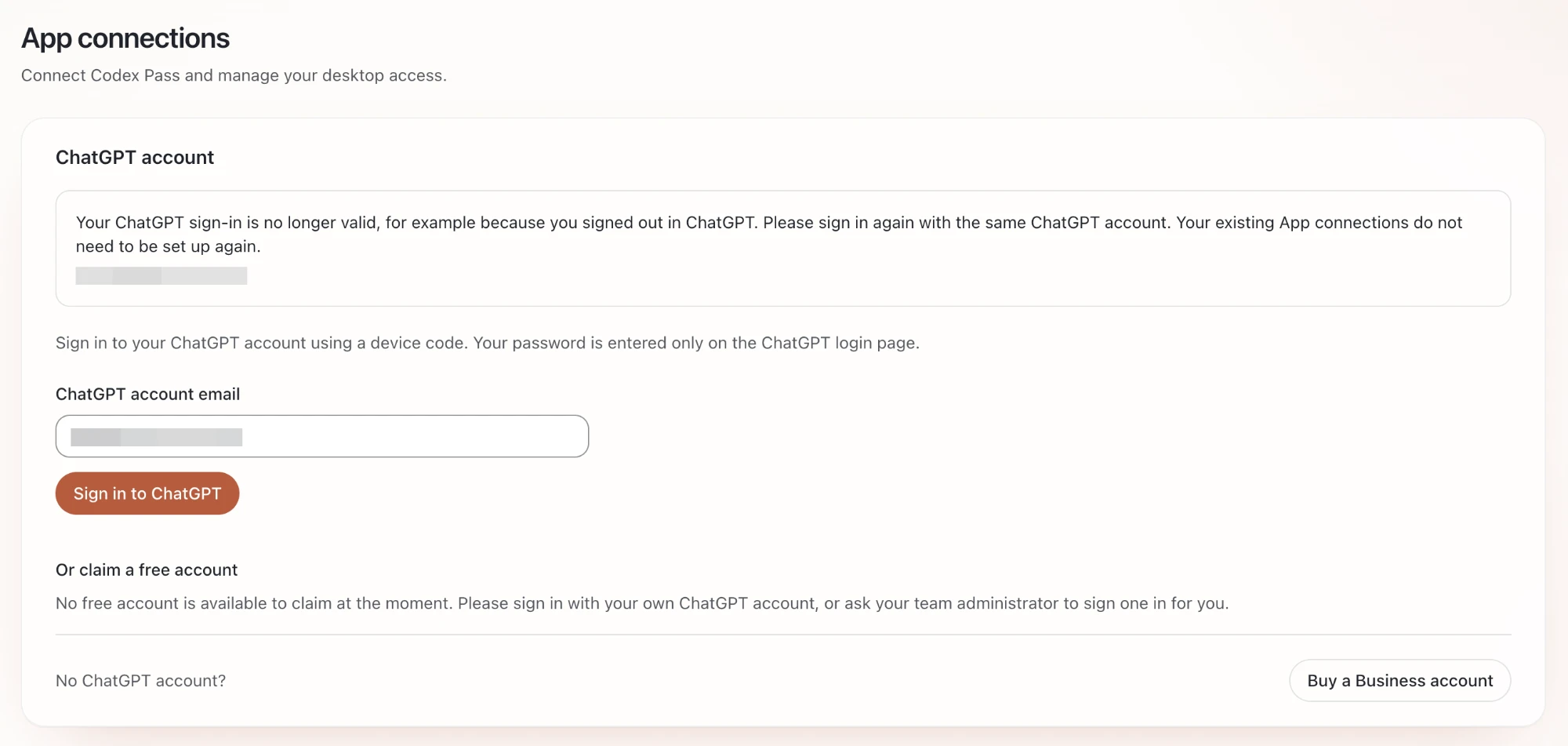
How to recover
- On the Codex Pass home page, select “Open the cp.dev Console”.
- Under “ChatGPT account” on the App connections page, sign in again with the same ChatGPT account. The sign-in uses a device code, and your password is entered only on the ChatGPT login page.
- Return to Codex Pass. The login is restored on this computer within about a minute, or you can select “Check again” to confirm immediately.
ChatGPT does not need to be restarted, and your existing App connections do not need to be set up again. Once the login is restored, please send the message that failed again.
If the message refers to a team ChatGPT account, that account is signed in by your team administrator. Please ask the administrator to sign it in again in the cp.dev Console.
Why it happens
After a ChatGPT account is signed in through the cp.dev Console, the sign-in is stored encrypted in the Console. Your computer receives only a short-lived access credential, and the Console renews it.
The Console regularly confirms with OpenAI that the sign-in is still valid. If OpenAI neither accepts the current sign-in nor allows it to be renewed, the Console marks the account as signed out in ChatGPT and stops issuing it to devices. Codex Pass then shows the message above. Your computer holds nothing it could renew the sign-in with, so it cannot repair this by itself. The account holder has to sign in once more.
One cause we have confirmed is the account holder choosing “Log out of all devices” in ChatGPT. Otherwise, we generally attribute it to OpenAI requiring the account holder to sign in again because of account policy, risk controls or other reasons.
We have not observed any link between this and account bans. Security measures of this kind are common, and sign-ins on the web and on mobile usually expire at the same time. If you open the ChatGPT website or the mobile app where you were already signed in, you will usually be asked to sign in again there too.
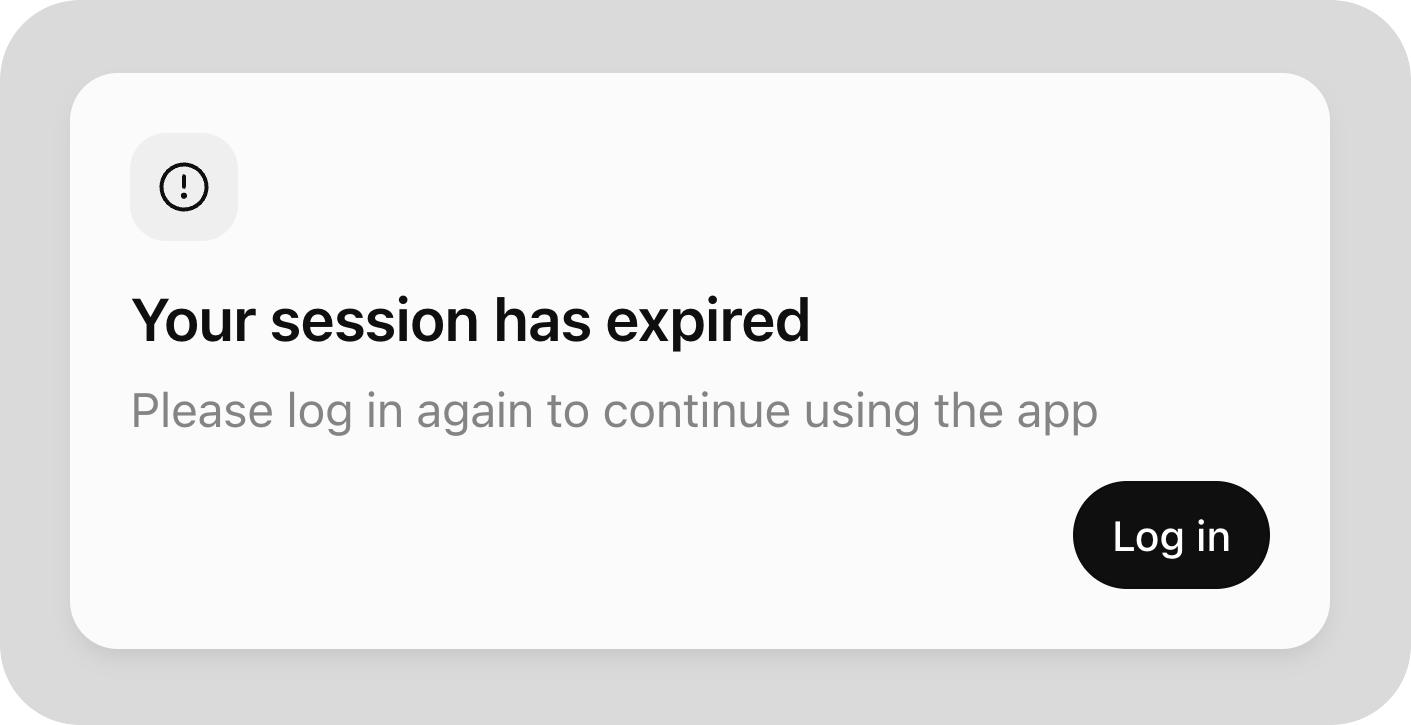
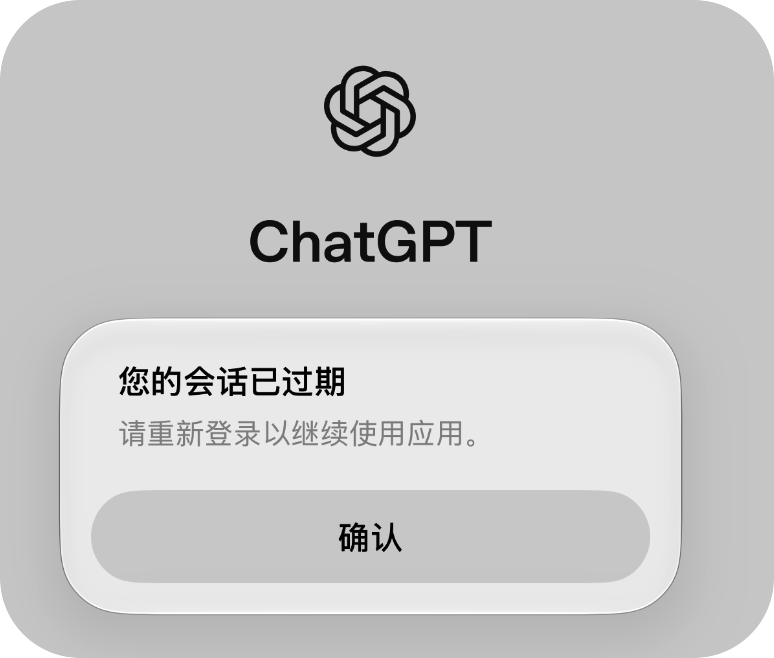
A network interruption, an unavailable proxy or an exhausted quota does not produce this message. In those cases the account is still valid, and Codex Pass explains the cause separately.
How to make it less likely
Use a stable exit IP. When you sign in again, we recommend using the egress proxy your administrator provides, so that the account is always used from one IP address, or from a few that rarely change. This avoids adding to the risk-control exposure. For team accounts, the administrator sets the proxy under “Egress proxies” in the cp.dev Console. The ChatGPT Account page in Codex Pass shows the IP address this computer uses for ChatGPT and warns you when it differs from the administrator’s setting.
Leave part of the quota unused. On the ChatGPT Account page in Codex Pass you can set a “5-hour reserve” and a “Weekly reserve” separately. With “Hard stop” turned on, the official quota stops being used once the reserve is reached. Please try not to use up the whole quota every time. Running a quota down to zero is one of the risk-control triggers we have observed.
Limit the number of signed-in devices. We do not limit how many devices one account connects, but we recommend signing the same account in to Codex on no more than three devices, and the cp.dev Console counts as one. For example, signing in on a Mac mini and on a MacBook Pro, together with the Console, already makes three. Signing in on a Windows desktop as well may cause the account to be signed out on every device.
A note on compliance
When you sign in to your own ChatGPT account through Codex Pass, you use the device-code sign-in that Codex itself provides, and Codex still runs inside the official ChatGPT desktop app. Your own account is signed in by you and used by you, so no account sharing is involved, and we consider this use consistent with OpenAI’s account terms.